
- Myth vs Fact: Is Your Broadband Provider Slowing You Down?
- Problem 1: Evening Congestion and Router DNS Bottlenecks
- Solution: Change Your Router DNS and Disable Smart Setup
- Myth vs Fact: "I Need Gigafast 1 Gbps Internet to Stream Live TV"
- Problem 2: Wireless Wi-Fi Interference and Frequency Bands
- Solution: Shift Bands or Upgrade to Powerline Adapters
- Problem 3: Incorrect App Buffer Size and Video Decoder Settings
- Solution: Fine-Tune App Playback Options
- Myth vs Fact: "A VPN Will Always Eliminate IPTV UK Buffering"
- Quick Checklist to End IPTV UK Buffering Today
Myth vs Fact: Is Your Broadband Provider Slowing You Down?
It usually starts right during a crucial match or the final ten minutes of a weekend drama. The video freezes. The loading wheel spins. You restart the app, but five seconds later, the picture freezes again. Most people instantly blame their internet service provider or assume their broadband package lacks speed. But is ISP throttling always the culprit behind IPTV UK buffering?
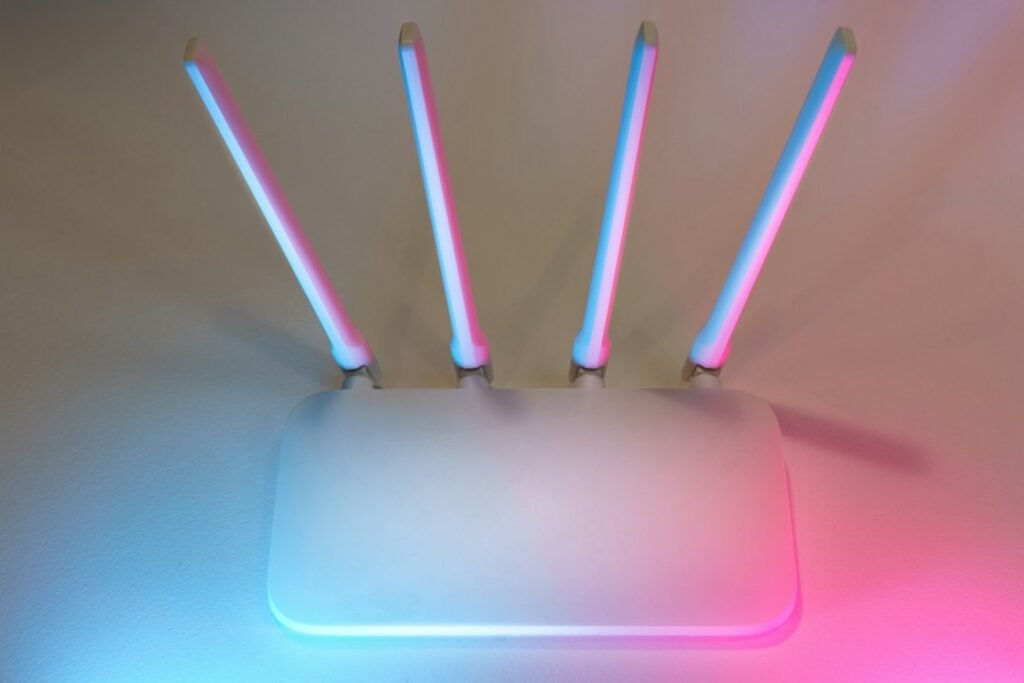
Let’s break down what is actually happening when your live stream stutters.
Myth: “My Virgin Media or BT broadband speed test shows 250 Mbps, so my connection cannot possibly cause live streaming lag.”
Fact: Speed test results mean very little for live broadcast traffic. A standard speed test measures how fast your network can download a short burst of data from a nearby local server. Live internet protocol television requires a continuous, unbroken stream of small data packets over hours. If your router drops even 1% of those incoming packets because of local Wi-Fi interference, your playback pauses to re-synchronise. Raw bandwidth is rarely the bottleneck for HD or 4K broadcasts.
Myth: “UK ISPs intentionally target and block all live streaming protocol traffic every evening.”
Fact: While major UK internet providers like EE, Sky, Vodafone, and BT use automated management during peak congestion periods (usually between 7:00 PM and 11:00 PM), broad traffic management affects heavily congested local network nodes rather than your individual device. Most evening drops stem from congested home Wi-Fi bands or DNS routing issues rather than direct provider blocks.
Problem 1: Evening Congestion and Router DNS Bottlenecks
During peak hours, default DNS servers provided by UK ISPs handle millions of domain lookups simultaneously. When your streaming device requests a channel feed, a slow response from your provider’s default DNS server causes delay, buffering, or timed-out connections. If you want to improve overall stability, selecting a reliable IPTV service in the UK requires a solid home network foundation underneath it.
Solution: Change Your Router DNS and Disable Smart Setup
You can solve server lookup delays easily by changing the primary and secondary DNS settings inside your network router or directly on your streaming box. Replacing your provider’s default addresses with free, high-speed global resolvers makes server connection attempts virtually instantaneous.
Use these reliable public DNS addresses:
- Cloudflare DNS: Primary 1.1.1.1 | Secondary 1.0.0.1
- Google Public DNS: Primary 8.8.8.8 | Secondary 8.8.4.4
- Quad9 DNS: Primary 9.9.9.9 | Secondary 149.112.112.112
Another common culprit specific to UK households is hub software. BT Smart Hubs, for example, feature a setting called “Smart Setup”. It presents a welcome webpage to newly connected home devices. Unfortunately, this background process regularly breaks video connections on streaming devices, media players, and smart TVs. Disabling Smart Setup inside your hub’s admin control panel (usually accessed by entering 192.168.1.254 in your web browser) instantly fixes endless loading screens for thousands of UK viewers.
Myth vs Fact: “I Need Gigafast 1 Gbps Internet to Stream Live TV”
Broadband advertising leads many UK households to believe that high-resolution streams require ridiculously expensive full-fibre gigabit packages. That is simply inaccurate.
Here are the actual steady download speeds required for clean, uninterrupted broadcast playback:
- Standard Definition (SD): 3 Mbps to 5 Mbps
- High Definition (HD 1080p at 50fps): 10 Mbps to 15 Mbps
- Ultra HD / 4K (2160p at 50fps): 25 Mbps to 35 Mbps
If you have an entry-level FTTC (Fibre to the Cabinet) package delivering 40 Mbps to 50 Mbps down, you have more than enough capacity for crystal-clear 4K live streams. Upgrading to a 900 Mbps contract won’t eliminate IPTV UK buffering if your internal home Wi-Fi network suffers from poor coverage or signal attenuation.
Problem 2: Wireless Wi-Fi Interference and Frequency Bands
Wi-Fi signals hate brick walls, metal radiators, and household electronics. Standard UK homes built with dense brick interior walls severely degrade wireless radio signals. If your router sits in the hallway while your Firestick or smart TV sits in the lounge behind a thick wall, your device might only receive a fraction of your internet speed.
Furthermore, the standard 2.4 GHz Wi-Fi frequency band is ridiculously crowded. Microwave ovens, Bluetooth speakers, baby monitors, and your neighbour’s wireless network all compete on 2.4 GHz. This causes massive packet loss, which immediately triggers video buffering on live television feeds.
Solution: Shift Bands or Upgrade to Powerline Adapters
First, log into your router settings and split your Wi-Fi network into two separate named networks: one for 2.4 GHz and one for 5 GHz. Connect your streaming media device exclusively to the 5 GHz band. While 5 GHz has a slightly shorter range than 2.4 GHz, it delivers much higher throughput with almost zero household signal interference.
If your television sits far away from your main router, avoid basic Wi-Fi range extenders. Range extenders halve your available bandwidth and double your latency. Instead, choose one of these two superior hardware solutions:
- Ethernet Cable (Direct Connection): Running a physical Cat6 ethernet cable from your router directly into your media player or TV guarantees 100% stable connection speed with zero packet loss.
- Powerline Network Adapters (HomePlug): If running cables across carpet or skirting boards is impossible, buy a set of Powerline adapters (such as TP-Link AV1000). These devices send your broadband signal through your home’s existing copper electrical wiring. You plug one adapter near your router and the second adapter near your television, connecting both with short network cables. It provides near-ethernet stability without visible wires.
For users running media devices like Amazon’s streaming dongle, keeping your physical hardware cool and connected via a solid network link is crucial. You can read our detailed step-by-step setup breakdown in our guide on how to use Firestick with IPTV for smooth streaming.
Problem 3: Incorrect App Buffer Size and Video Decoder Settings
Even with an flawless 100 Mbps wired connection, you can still experience annoying stuttering if your media application uses poor software settings. Most modern media player apps (like TiviMate, IPTV Smarters, or IBO Player) allow you to configure how video data is loaded and processed.
Solution: Fine-Tune App Playback Options
Open the settings menu of your preferred media player app and adjust these three key parameters:
1. Adjust Buffer Size (Buffer Length)
By default, many applications set buffer size to “None” or “Small” to make channel switching feel instantaneous. However, a zero-buffer configuration leaves zero room for minor network blips. Go into your player’s playback settings and change the buffer size to Medium or Large (typically 5 to 10 seconds). Channels may take two seconds longer to load when clicked, but live streams will run smoothly without dropping frames.
2. Switch Video Decoding Modes
Media applications offer two primary methods to process video feeds: Hardware Decoding (HW) and Software Decoding (SW). Hardware decoding relies on your TV box or Firestick processor chip, while software decoding relies on raw software emulation.
- If your video stream drops frames or exhibits audio-sync errors, switch playback settings from HW to HW+ or Software mode.
- On older streaming sticks, switching to Hardware decoding reduces device overheating significantly. Overheating causes processor throttling, which manifests directly as video lag.
3. Change Stream Format (HLS vs MPEG-TS)
If your service application lets you choose output formats, try switching between MPEG-TS (.ts) and HLS (.m3u8). MPEG-TS offers faster channel load times, but HLS handles shaky internet connections much better because it breaks video streams into tiny adaptive segments.
If you are still weighing up hardware options, choosing the right physical streaming box makes a massive difference in how well these decoders perform. Check out our advice on how to choose the best Android box for UK streaming to ensure your hardware has enough RAM and processing power to handle modern video codecs.
Myth vs Fact: “A VPN Will Always Eliminate IPTV UK Buffering”
Virtual Private Networks are widely discussed across internet forums as a quick fix for streaming issues. But does adding a VPN actually solve buffering?
Myth: “Turning on a VPN instantly doubles your streaming speed and fixes all video freeze issues.”
Fact: A VPN actually adds an extra layer of processing and encryption to your connection. In almost all cases, running an active VPN slightly reduces your peak download speed and increases your latency (ping times), because your data must travel through an intermediary server before reaching its final destination.
However, there is one specific scenario where a VPN completely eliminates IPTV UK buffering: ISP Throttling.
If your provider deliberately targets and slows down specific media streaming protocols during peak match hours, a VPN encrypts your network traffic entirely. Your internet provider can no longer see what type of data you are downloading; they only see scrambled encrypted traffic. Consequently, their automated throttling algorithms fail to trigger, restoring your full internet line speed.
If you decide to use a VPN to stop evening network throttling, keep these setup tips in mind:
- Choose Nearby Servers: Always select a UK server (London, Manchester, or Docklands). Connecting to servers in distant countries like the US or Australia adds unnecessary ping delay and degrades stream stability.
- Use Fast Protocols: Choose modern, lightweight encryption protocols like WireGuard or Lightway inside your VPN app settings instead of older, heavier protocols like OpenVPN TCP.
- Avoid Free VPNs: Free VPN services have overcrowded servers, strict data caps, and terrible throughput. They will introduce far worse buffering than your home broadband ever would.
Quick Checklist to End IPTV UK Buffering Today
If your broadcast keeps freezing right now, work through this practical diagnostic checklist in order:
- Restart your equipment: Unplug your broadband router and streaming device from the wall socket. Wait 60 seconds, then plug them back in. This clears out clogged device RAM and establishes a fresh routing session with your provider.
- Ditch Wi-Fi for testing: Plug an ethernet cable temporarily into your device. If buffering instantly disappears, your Wi-Fi signal is the weak link.
- Clear app cache: Go to your media device settings, navigate to Applications, select your TV app, and hit “Clear Cache”. Never click “Clear Data” unless you want to re-enter your login credentials.
- Change DNS Settings: Update your home router settings to Cloudflare (1.1.1.1) or Google (8.8.8.8) to bypass restrictive provider DNS lookup servers.
- Increase buffer size: Open your player settings and bump your stream buffer limit up to 5 or 10 seconds.
- Test a VPN server: If freezing only happens during major live events at 8:00 PM on weekdays, connect to a local UK VPN server using the WireGuard protocol to bypass targeted ISP traffic management.
Taking a systematic approach to your home network setup eliminates almost every common cause of video freezing. Once you fix local signal interference, configure custom DNS lookups, and properly tune your player app settings, you can enjoy crisp, smooth, non-stop television on any device.
For more information, iptv.
Related reading
- Best IPTV Free Trial 2026 Instant Live TV Access
- Best IPTV for Firestick 2026 Fast Reliable Streaming
Pingback: IPTV UK Broadband Requirements: Speeds & ISP Rules